
Description
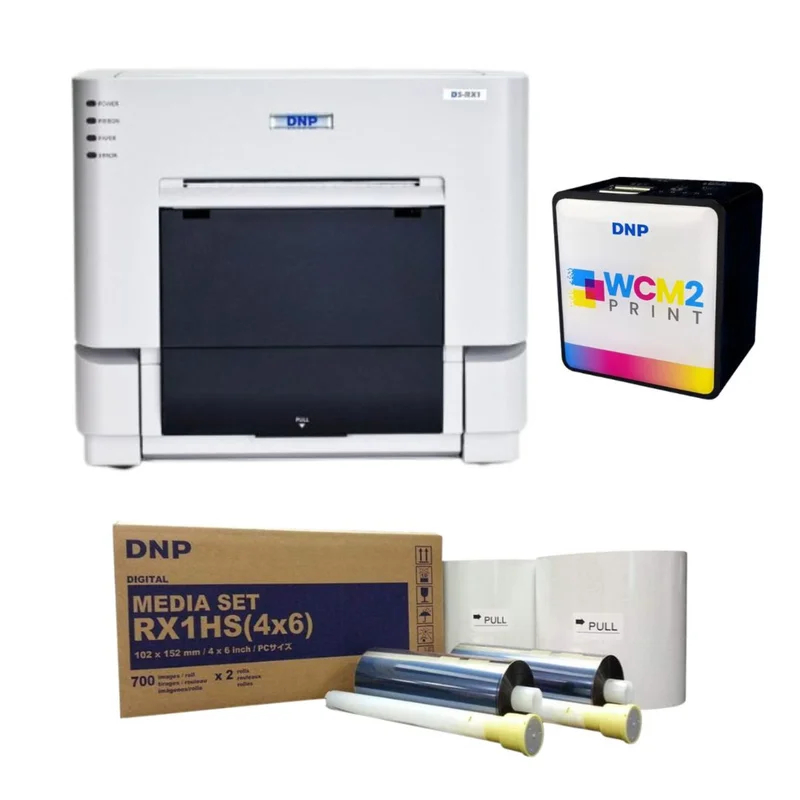
SpinPix360 DNP RX1HS Printer Bundle
Our range of iPad photo booths are made for digital sharing, but printed out photos through a printer kit are an option too. We offer the best bundle deal with our printer kit which includes the DNP RX1 printer, a WCM2 wireless connect module, and a media kit good for 1400 4×6″ prints. Paired up with an Photo Booth, these are the only things you will need to provide the best printed memories for your guests.
What Our Experts Think
- High-Speed Printing – The DNP RX1HS printer delivers fast, high-quality prints for events.
- Compact & Efficient – Space-saving design without compromising on performance.
- Reliable & Durable – Built to handle high-volume printing with consistent results.
- Complete Bundle – Includes everything needed for immediate setup and operation.
- Perfect for Events – Ideal for photo booths, ensuring guests receive instant prints of their moments.
Q&A
Q: What is included in the SpinPix360 DNP RX1HS Printer Bundle?
A: The bundle includes the DNP RX1HS printer, printer stand, media rolls (paper and ribbon), and all necessary cables for quick setup.
Q: What makes the DNP RX1HS printer ideal for 360 photo booths?
A: The DNP RX1HS printer offers fast print speeds, high-quality photo printing, and reliability, making it perfect for high-volume 360 photo booth events.
Q: What print sizes can the DNP RX1HS handle?
A: It supports 4×6-inch prints, delivering high-quality photos with vibrant colors and sharp details.
Q: Is the printer easy to set up?
A: Yes, the printer is designed for easy setup and includes user-friendly instructions to get it up and running quickly at events.
Q: Can I print from multiple devices?
A: Yes, the DNP RX1HS supports various connections, including USB and Wi-Fi, allowing printing from multiple devices simultaneously.
Q: Is the printer portable?
A: Yes, the printer is compact and lightweight, making it easy to transport for events and photo booth setups.
Maintenance Tips
- Keep Clean: Regularly clean the printer’s exterior and paper feed area with a soft, dry cloth. Use a blower or compressed air to remove dust from internal components.
- Replace Printer Ribbon & Paper: Monitor the ribbon and paper supply, replacing them as needed to avoid print quality issues.
- Check for Paper Jams: Inspect the printer for any paper jams or misfeeds. Always use the recommended paper and ribbons to avoid damage.
- Firmware Updates: Keep the printer’s firmware up-to-date for optimal performance.
- Storage: When not in use, store the printer in a cool, dry environment. Ensure it’s covered to prevent dust from accumulating on sensitive components.

Reviews
There are no reviews yet.